Last minute tips for a successful Memorial Day weekend!

Our Opening Week Best Practices!

You’ve made it! Opening day is just around the corner and final preparations are underway. Going into the weekend, we wanted to put together a list of last minute loose ends to tie up before the weekend. The glorious Summer pool season is finally upon us! Get ready to get your feet in the water this year and new beach towels folded and prepped. We wish you all the best of luck going into the holiday weekend! Don’t forget to take some “me time” in the next week – you’ve earned it!


Opening Weekend Checklist – To-Do’s Before the Big Day!
  • Finalize Reservation Facilities – Double check your Reservation facilities. Make sure the schedules and limits are properly in place. Want to restrict reservations by account type or allow members to add guests? You can set those allowances at the Group Facility level. Our Reservations section of the Knowledge Base has a lot of information on facility setup.
  • Staff Training – Make sure your front desk staff has been thoroughly trained on the checkin screen, the process selling guest credits at the front desk and selling items at the snack bar. We put together an article that explains how to use the POS New Order screen from the staff perspective. We also have an MSU staff training video that may answer any last minute questions.
  • Check Guest Pass Products and Front Desk Credit Pricing – Make any updates to your Guest Pass products. Need to update the cost of passes if there was a change since last Summer? This is the time to do it! You’ll also want to take a look at your Front Desk > Checkin > Settings and make sure the pricing and other settings have been updated for the new season.
  • Test Camera on Club Devices – Some customers find that when staff attempt to take member photos at the front desk, they have a hard time enabling the camera on their club devices. This is almost always the result of Chrome security settings blocking access to the camera. Before opening day, make sure that you’ve updated camera settings on all devices at the front desk.
  • Finish Up or Add New Point of Sale Products – If you are using the Point of Sale feature, make sure you’ve finished creating all of your POS products and properly categorize them so that they are easily identifiable on the transaction report!
  • Finalize and Test Your Forms – Make any final updates to your forms and test them before making them available to members. Use a real credit card to test the Authorize.net feeds and credit cards fields. Once you’re finished testing, you can easily refund the charges.
  • Don’t Forget to Check Out the Updated Visits Report – Our new and improved Visits report, located under the Front Desk tab on your menu, offers a few new sorting options that make this report very helpful! You’ll see a button called “Columns” to the right of the Export button. From here, you can add more information to your report and exports. With the last update, we’ve added columns for attendant, member type and visit type (member vs. guest).

New Releases: Mailchimp 2.0 with In-Platform Email Integration

As of Wed., May 24 we have replaced our original MailChimp integration with a new version that has been re-written from the ground up using the latest version of their API. You may have already noticed that the former MailChimp Emails link in the left hand menu is no longer there. That has been replaced with a link under the new Communications menu item in the Member Splash dashboard. You can absolutely continue to send email campaigns directly from Mailchimp if you choose. The new in-site tool is an enhancement intended to make sending email more efficient for admins but it will not replace the option of sending from Mailchimp.

Untitled

Under the COMMUNICATIONS menu, you will see the Email Accounts and MailChimp dropdown.  Email Accounts refers to Member Splash provided email accounts and forwarders (as known as aliases) that are included with the Premium plan level. MailChimp is where you can choose which information to sync from Member Splash to MailChimp; run a batch sync (to update all Member Splash users in MailChimp); and create and send new email campaigns.

Clicking on MailChimp should  take you to the Send Email tab in the new interface. That will only happen if your club already has a valid MailChimp API key entered and a default email list selected. If you don’t, you’ll be taken to the Main Settings screen where you’ll be asked to complete the set up process (if you have any questions please let our support team know).

On the Send Email tab you’ll see several tabbed steps that walk you through creating and sending a new email campaign or using a previously saved draft campaign.

Untitled

When you get to the step for creating or editing the email content you’ll be presented with a simply WYSIWYG editor for designing the email. Note: If you prefer to continue to send from MailChimp using your existing customized templates you are still able to do so.

Last Minute Member Splash Deals!

Discount on Managed Member Splash Premium Block Hours Ends June 1!

If you’ve been thinking about purchasing Premium Block hours, now is the time to buy! By purchasing our Premium Block Hours, our skilled coaches at Member Splash can quickly and effectively tackle your organization’s needs. We’re offering a 10% discount on blocks purchased in the month of May – visit our Managed Member Splash page for more details!

Maximum Referral Bonus Ends May 31st!

At Member Splash, we LOVE referrals. In fact, referrals are the number one way we gain new customers. We appreciate those who spread the word about Member Splash software services but we want to give back with a special THANK YOU to those who “share the love” by sending us a referral. That is why we’re now offering up to $350 to those who send us a referral which leads to a sale in 2023. Are you interested? If so, please visit our referral page for more info.

You Asked, We Delivered!

New Features for the New Season!

Opening day will be here in just 2 short weeks! We hope that your preparations are going smoothly and we wish your teams the best of luck as we inch closer to opening weekend. We are continuing to roll out updates and have a lot more in store this season. As we release new updates, we will continue to highlight them here in the newsletter, as well as, note them on your dashboards in the Member Splash News section.

Mailchimp 2.0 Will Be Released Soon!

As many of you know Mailchimp sent an email notification that said they will retire their API Export 1.0 and API 2.0 on June 5, 2023. Fear not! We are releasing an update to our plugin that utilizes Mailchimp’s current API in the next few days, so you will not experience any syncing interruptions!

We’re also implementing a new feature that allows admins to send Mailchimp emails right from the platform! Our new custom email tool allows admins to select segments and send campaigns from the Member Splash platform!

Once released, you can access the new custom email tool from the WordPress menu. Just click the “Mailchimp Emails” tab in your menu and you can start sending emails right from Member Splash! Please be on the lookout for supporting documentation to follow in the coming days!

Untitled

Admins Can Now Delete ‘On Account’ Orders!

Our customers no longer need to ask the support team to delete ‘on account’ bills or the orders included within those bills! With the latest update, we’ve given admins the ability to delete these orders too.

When members place an ‘on account’ order at the snack bar or buy guest credits at the front desk, that order displays on the Finances > Orders screen. Admins will see a delete option when clicking the ‘hamburger’ menu in addition to options to view and download pdf.

After the admin ‘runs to bills,’ they can now delete ‘on account’ orders included in that bill. The orders held within the bill are displayed in the Orders screen also.

Admins can delete individual orders on that bill – just click the ‘hamburger’ menu to the right of the ‘last action’ column. After an order is deleted, the total on the bill will be automatically updated with the new total on the View Bills screen.

Untitled

If the admin needs to delete all orders included in the bill, the bill will be completely removed from the View Bills screen. For more information, please see our new article: Delete Orders (Paid, Pending and On account Orders)


Update Camera Settings on Your Club Devices Before Opening Day!

Some customers find that when staff attempt to take member photos at the front desk, they have a hard time enabling the camera on their club devices. This is almost always the result of Chrome security settings blocking access to the camera. To resolve it right click on the padlock icon in the address bar and choose site settings. This article will walk you through a couple of simple updates to your site settings to avoid any camera hiccups on opening day. Please remember to make these updates on all club devices that will be used to take member photos.

Untitled

New Articles for the New Member Account Screens!

We’ve heard from some admins that members are having a difficult time locating a few important fields and docs on our new and improved member account screens. The support team created a couple new articles to help you quickly locate these items for your members. You can even send your members links to these articles so that they can see the screenshots and locate items more easily.

For a quick tour of the member account screen, we’ve created an article that provides and overview of the new screen. It will show you where you can finds items like the Edit Account Details tab and Change Password tab.

Untitled

Waiver forms can be accessed by clicking the blue doc icon to the right of the member’s photo. Members will see the list of waivers display and they simply click the waiver they need to complete. They will see a pop up where they will complete the waiver.

Untitled

When adding or updating a members photo, members will simply click the ‘hamburger’ menu displayed to the right of their name to access the Add Photo button. They will see a pop up that displays a pencil icon allowing them to edit their photo. From there they can upload a photo then rotate it, or zoom in or out as needed. They can also remove a photo and replace it with a new photo as well.

Untitled

Your NEW Dashboard!

Please keep an eye on your dashboard and our customer newsletters for all the latest on our software updates and more helpful hints as we round the bases into Memorial Day weekend!

Last Minute Member Splash Deals!

Discount on Managed Member Splash Premium Block Hours Ends June 1!

If you’ve been thinking about purchasing Premium Block hours, now is the time to buy! By purchasing our Premium Block Hours, our skilled coaches at Member Splash can quickly and effectively tackle your organization’s needs. We’re offering a 10% discount on blocks purchased in the month of May – visit our Managed Member Splash page for more details!

Maximum Referral Bonus Ends May 31st!

At Member Splash, we LOVE referrals. In fact, referrals are the number one way we gain new customers. We appreciate those who spread the word about Member Splash software services but we want to give back with a special THANK YOU to those who “share the love” by sending us a referral. That is why we’re now offering up to $350 to those who send us a referral which leads to a sale in 2023. Are you interested? If so, please visit our referral page for more info.

Three Weeks Until Opening Weekend!

Let Us Help You Make it to the Finish Line!

We hope that your pre-season preparations are going smoothly and that you are enjoying the new dashboard and reporting screens! Please keep an eye on your Member Splash News widget on your dashboard for news, updates and tips as we move into the Summer season! We will continue to send our standard customer newsletters via email for a bit, but will eventually transition all customer communications to the dashboard.

Support, Support, Support!

Opening day is just around the corner so we’re putting together a list of helpful hints and tips to help you navigate this busy time of year. Did you know that you can meet with a member of the Member Splash team when you need extra help? We have both no-cost and paid sessions available when you need a little guidance from our team.

Weekly Q&A Group with a Member Splash Coach!

Do you have questions about setting up and configuring your organization’s Member Splash account? Take advantage of these free, weekly Q&A sessions (Wednesday and Thursday) hosted by a Member Splash coach. With our first come, first serve approach, we encourage you to enroll as early as possible… and did we mention it’s free? Click here to sign up for a session!

Managed Member Splash!

We understand that sometimes setting up your organization’s complex business rules can be challenging, but Managed Member Splash is here to help. Consider a group or one-to-one 1 hour consultation call with a Member Splash coach! Or purchase a block of support hours and let us do the work for you! It can make all the difference in the world. Book your consultation call today and take the first step towards achieving your business goals!


Helpful Hints for the Upcoming Season:

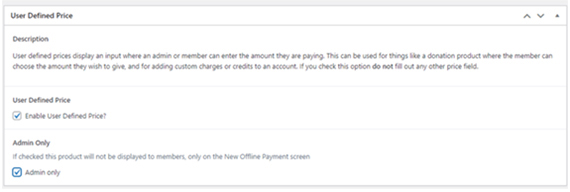
User Defined Pricing Products Can Help You Accommodate Onetime Member Purchases!

Not only can you use User Defined products to collect donations, but you can also use these products to charge members for one-off fees. For example, a few clubs have contacted us recently and asked how they can charge certain members a dues rate that included an early-bird discount even though the discount timeframe has passed. You can set up a User Defined Pricing product, enable the module and check the Admin Only setting so that this product will only be available on the Offline Payment screen. Then when you take the member’s payment over the phone, just enter the amount that you would like to charge into the User Defined Pricing field.

How to Locate Waivers on the Updated Member Screens:

A couple of clubs have reached out to the Support team to tell us that members are having a hard time locating their waiver forms. Waivers can be accessed via the blue doc icon to the left of the member’s name, as pictured below.

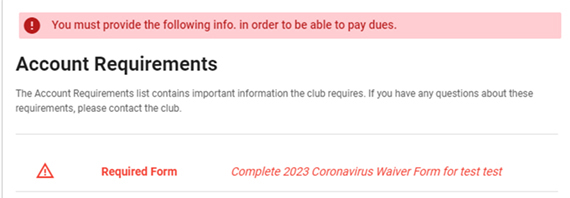
While the new icon is a little more understated, Members will also see a large ‘Account Requirements’ section that lists the required waivers and information needed before they can access the payment page. This section can only be seen when the user is logged in with member credentials. You will not see it when logged in as an admin when using the ‘switch to’ feature. To really test what you’ve set up as required fields, use your test account credentials to log in as a member and take a look at the new requirements message.

Add A Tag to Your Waiver Form for Easier Reporting!

Have you wondered how you can easily pull a report that will tell you how many members or residents have signed their waiver form? The Gravity Forms Account Tags addon connects form entries to Member Splash account tags allowing you to add and/or remove account tags when a form is successfully submitted. We have step-by-step instructions that will show you how to add a new tag to your system and set up your waiver form so that a tag will be applied to an account when their waiver is submitted. A new tag will not be applied to those who have already submitted waivers, but it will be added to any new submissions.

Once you have the tag in place, you can use the report on the Membership > Accounts screen to filter for accounts that have the tag “waiver signed.”
Adding a Message to your Login Portal:

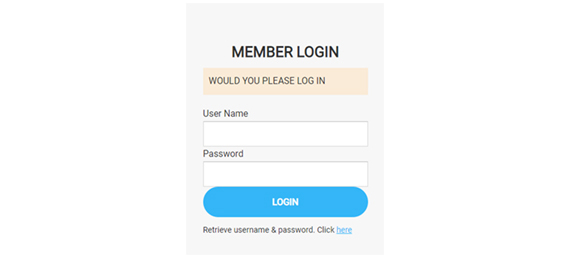
Did you know that you can add a short message to the login form that members see every time they log into their accounts? It’s an easy, full-proof way to share a quick reminder with your entire member community.

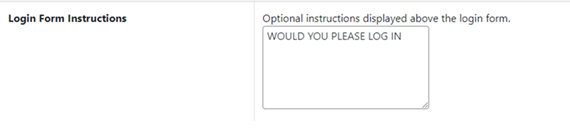
To update this message, navigate to Member Splash Settings > Member Splash Setting > Messages and you’ll see a field called “Login Form Instructions” in the middle of the listed settings. Just add your message and hit the Save Changes button at the bottom of the screen.

Update Your Authorize.net AVS Filter Settings to Avoid Declined Transactions:

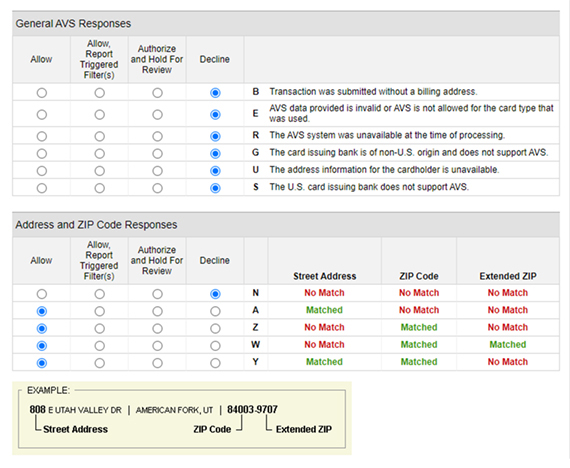
Have your members reported seeing an error that reads: “Error: Successful…”? That means they have entered a payment into the system that is being declined. The most common reason for a declined transaction is a mismatched address…Sometimes members move and forget to update the address on file with their credit card company thus causing a discrepancy between the address entered in their member accounts and the address on file with the credit card provider. But did you know that you can alter the settings in your Authorize.net account to make the settings more lenient so that members don’t run into that error when paying dues?

In your Authorize.net account, go to Tools > Fraud Detection Suite and click on the Enhanced AVS Handling Filter. Here you’ll see the settings that pick up any address mismatches. All of these settings can be adjusted to meet your needs.


Software News and Updates:

Coming Soon: Update to our Mailchimp Integration!

We are aware that Mailchimp recently sent out an email stating that they will retire API Export 1.0 and API 2.0 on June 5, 2023. We have a completely new MailChimp integration being released very soon that utilizes the latest MailChimp API. It also adds loads of new features like the ability to create and send MailChimp emails directly from Member Splash; the ability to review the recipients of a message before sending to ensure you are reaching the correct audience; and much more!

Update to User Roles Capability: Payments

A few of our board users reached out with concerns about staff level users being able to see our new widgets on the dashboard that pull in club financial information. We’ve updated the Admin > User Roles capability so that all user roles have dashboard access but only roles with the Payments capability enabled can see the top row of widgets. Typically, staff level users won’t have the Payments capability enabled, but this permission setting can now be adjusted to suite your needs. We also removed the Dashboard setting from Admin > User Roles.

Please keep an eye on your dashboard and our customer newsletters for all the latest on our software updates and more helpful hints as we round the bases into Memorial Day weekend!

Need New Revenue Streams? Ask Us How Today!

Being “scared of making change” doesn’t exist when you’re making “actual dollars” with Member Splash. Read that again.

Increase your revenue stream! Go digital and never look back at all the self-inflicted and unnecessary costs currently at your club—-Instead, look forward to the new digital revenue streams Member Splash can give you when you turn “change” into actual dollars!

Just say No…No-ing saves you lots of $!

  • No more mailing.
  • No more invoicing membership.
  • No more cards, punch cards, barcodes, replacement cards or printing.
  • No more phone calls.
  • No more setting member reservations.
  • No more missed guest fees.
  • No more strangers at your club.
  • No more membership sharing with outsiders.
  • No more paper forms.
  • No more transcribing.
  • No more staffing concerns.
  • No more cash box for the snack bar.
  • No more checks (if you want that too!).
  • No more hassles!…we could go on, but we’ll say NO too!

Go Digital…And Go Green $$$!

  • Digital sign ups and waitlist.
  • Digital self serve portal for member offerings (and admin abilities for those that need extra help changing to digital!).
  • Digital payments (batched into you merchant account at the end of each day).
  • Digital reporting/sorting.
  • Digital communication.
  • Digital picture check in.
  • Digital guest passes.
  • Digital care provider add-ons for a small fee.
  • Digital visit reports (for attendance look ups, guest tracking/inviting new members, staffing data, partial summer July/Aug membership data for more membership offerings and more!).
  • Digital point of sale for snack bar.
  • Digital sponsorship plugs ins.
  • Digital merch store.
  • Digital forms with payments for every need at the club.
  • Digital website options.
  • Digital support.
  • Digital “everything in one platform” for your team!…we’re digitally exhausted writing all of this!

Never look back…just count the dollars!

What are you waiting for? An invite! Here it is: Speak to us today and start “creating” (notice we didn’t say saving, because that’s in the platform price tag already) more revenue for your club. Time is money too, so don’t let the time slip away before next season starts again—-let’s talk about the money and revenue your club could be creating today!

Request a Demo