
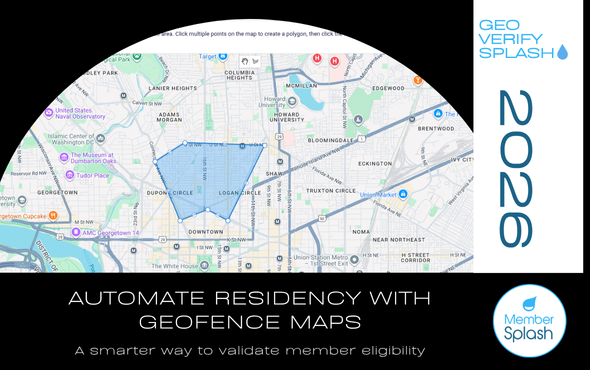
Faster, Smarter Club Registrations: Automate Residency with Geofence Maps
A smarter way for Swim & Tennis Clubs, HOAs, and community organizations to validate member eligibility.
Many clubs and community organizations have residency requirements, zoning boundaries, or neighborhood limits that determine whether a household is eligible to join. Traditionally, verifying these boundaries has been a slow, manual process — staff would need to cross-check the address on a map, review spreadsheets, or rely on outdated boundary documents.
Not only is this time-consuming, but it also increases the chance of error and delays during busy registration periods.
The Geofence Form Field changes that. By adding a simple, interactive boundary tool to your Gravity Form, you can automatically determine whether an address falls inside your approved area. This improves accuracy, speeds up registration, and gives your staff one less thing to manage.
What Is the Geofence Form Field?
The Geofence Form Field allows you to draw a custom boundary directly on a Google Map and link that boundary to an address field in your form. When a user enters their address:
-
The system checks whether the address falls inside or outside the polygon you created.
-
A hidden field is automatically populated with true or false.
-
That value can be used in conditional logic to show or hide fields, apply different fees, or manage eligibility.
This feature is especially helpful for clubs that need to verify residency before allowing registration or applying discounted member rates.
Why Clubs Need Automated Boundary Validation
Clubs often rely on geographic restrictions to manage membership, protect neighborhood access, or comply with HOA or community guidelines. Examples include:
-
Neighborhood swim & tennis clubs restricted to certain blocks
-
HOAs where only residents within a defined map area may join
-
Community pools offering reduced rates to in-boundary homeowners
-
Multi-city organizations where zoning affects program eligibility
Traditionally, staff had to manually review each applicant’s address — often during the busiest time of year. Automating this step reduces stress, eliminates back-and-forth with applicants, and ensures consistent accuracy.
How It Works: Step-by-Step
1. Add the Geofence Field and Address Field
Start by adding both fields to your form. Gravity Perks Address Autocomplete is fully supported.


2. Open the Geofence Settings
Click Geofence field → General Settings → Edit Geofence Area. A map overlay appears; your browser may prompt for location access.


3. Draw Your Boundary
Click to create a polygon. Complete the shape by clicking back on the starting point. Click Save Geofence.

4. Link the Address Field
Scroll to Target Address Field and select the address field you added.

5. Optional: Display the Map to Users
Check Display Map on Form to show applicants the boundary. Map appears wherever the field sits.


6. Enable Conditional Logic
Select any field — membership type, pricing, or waitlist category — and activate conditional logic.
Example:
Show “Resident Application Fee” if Geofence Field = true
Show “Non-Resident Waitlist Option” if Geofence Field = false

Why This Matters for Member Splash Clubs
For Swim & Tennis Clubs, HOAs, and Pool Management groups using Gravity Forms, this tool eliminates a major operational pain point. Instead of staff reviewing every address, the form handles it automatically — saving time and improving the member experience.
This is particularly valuable during high-volume moments like season pass sales, waitlist openings, or annual renewals.
Final Thoughts
Residency and boundary requirements aren’t going away — but now the manual checking can. The Geofence Form Field provides a modern, accurate, and automated way to enforce club guidelines without adding extra work to your membership team.
If you’re ready to reduce manual steps and improve your forms, this feature is a powerful addition to your toolkit.